 |
 |
 |
Note that I sent a sneak preview of this news using Patreon Quip earlier this week. I plan to experiment with Quips more in the future. The “quips” are visible to everyone, you can install the Patreon mobile app to get notifications about them, or just view the Patreon page with Quips. Of course, I will also continue to send longer posts (on Patreon, WordPress) about all new engine developments, which you get (if subscribed) by regular email.
Introduction
We have made the pointer lock (mouse look) logic work on the web, adding also the necessary API to observe when it was cancelled by the user.
We have also heavily refactored and improved how the pointer lock (mouse look) works on all the other platforms.
And we made a bonus specifically for Windows: we now perform additional operations to keep the mouse “confined” to the window during pointer lock, even if you have low FPS or move the mouse like crazy.
What is pointer lock, mouse look and first demos
The mouse look mechanism is used by 3D applications to look around. The idea is that you move the mouse to look around. The mouse cursor stays hidden, and the position of the mouse cursor is an internal thing that should not concern the user. For example, test it by right-clicking in:
- Walking Adventure (web build). Source code here.
-
Terrain with water (web build). Source code here.
-
Our editor is naturally a good example of it too. Once you hold right mouse button and look around in the viewport — that’s mouse look. Our experimental portable editor (web build) is showing it too.
The more generic name for this idea is “pointer lock” and it can also be used to implement “unbounded dragging”, useful for 2D operations. See examples in:
- Dragging Test (web build). Source code here.
-
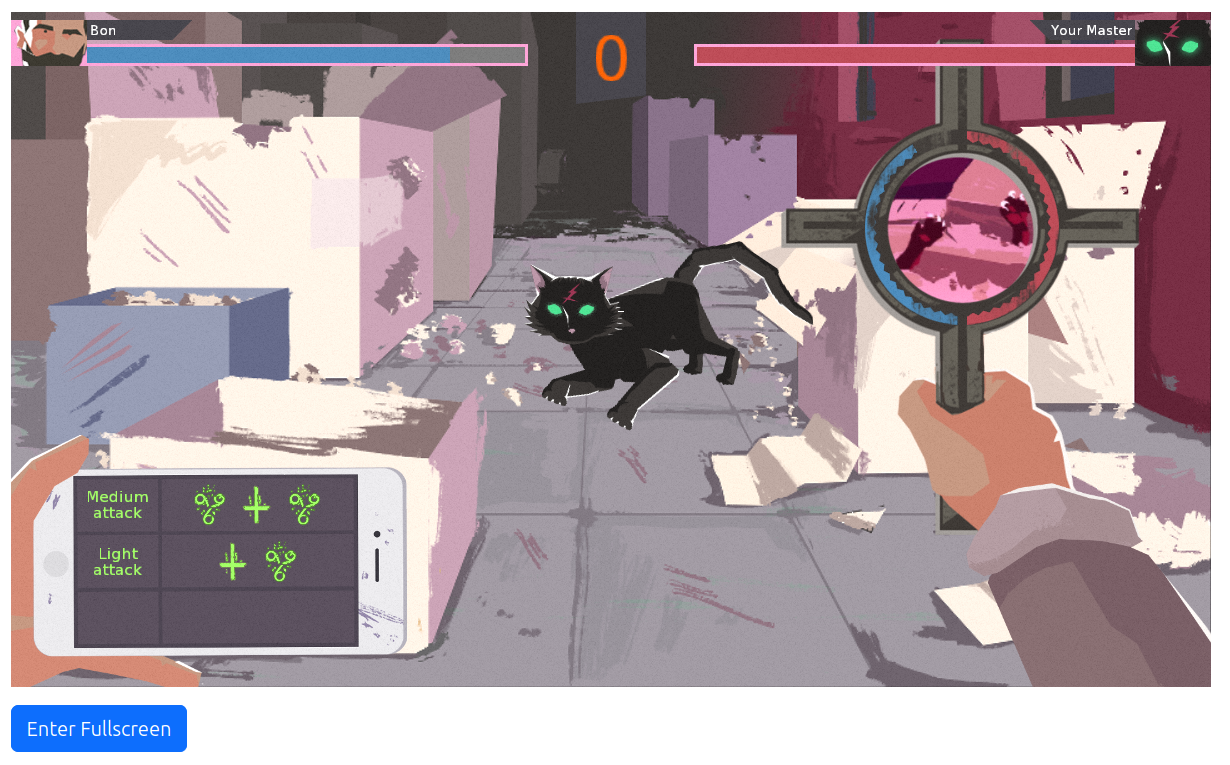
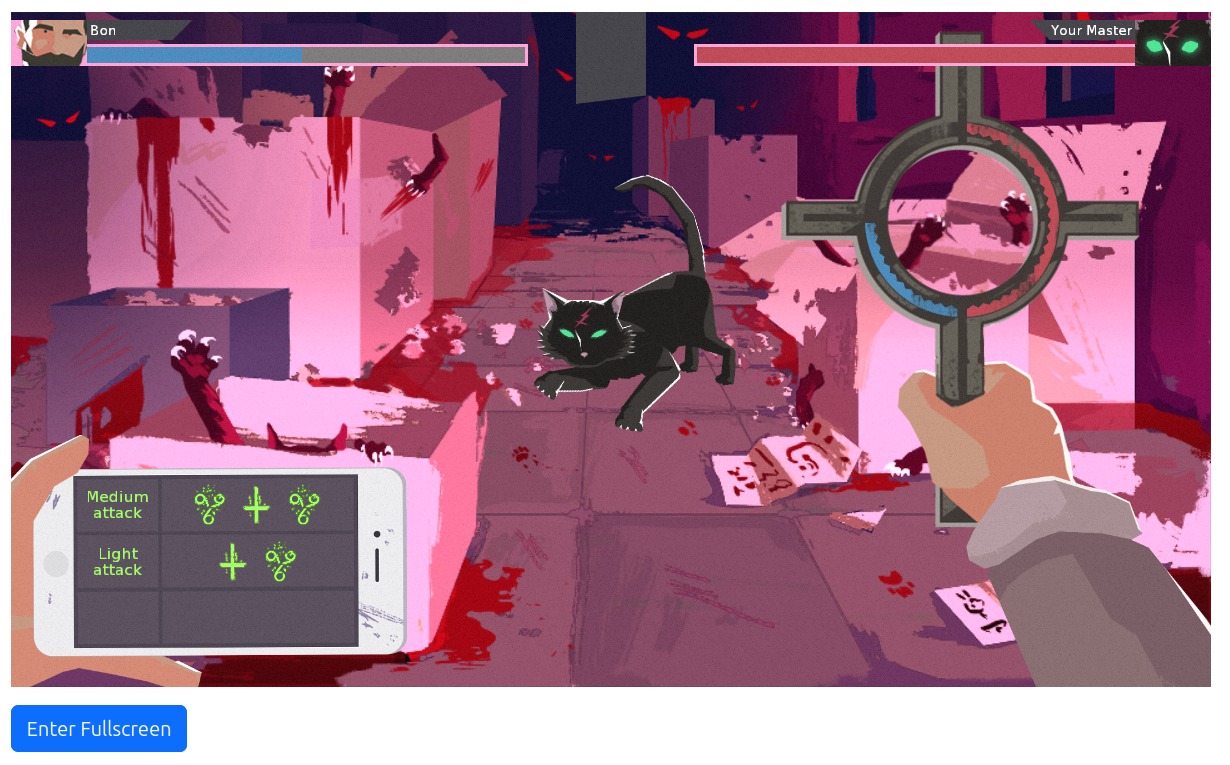
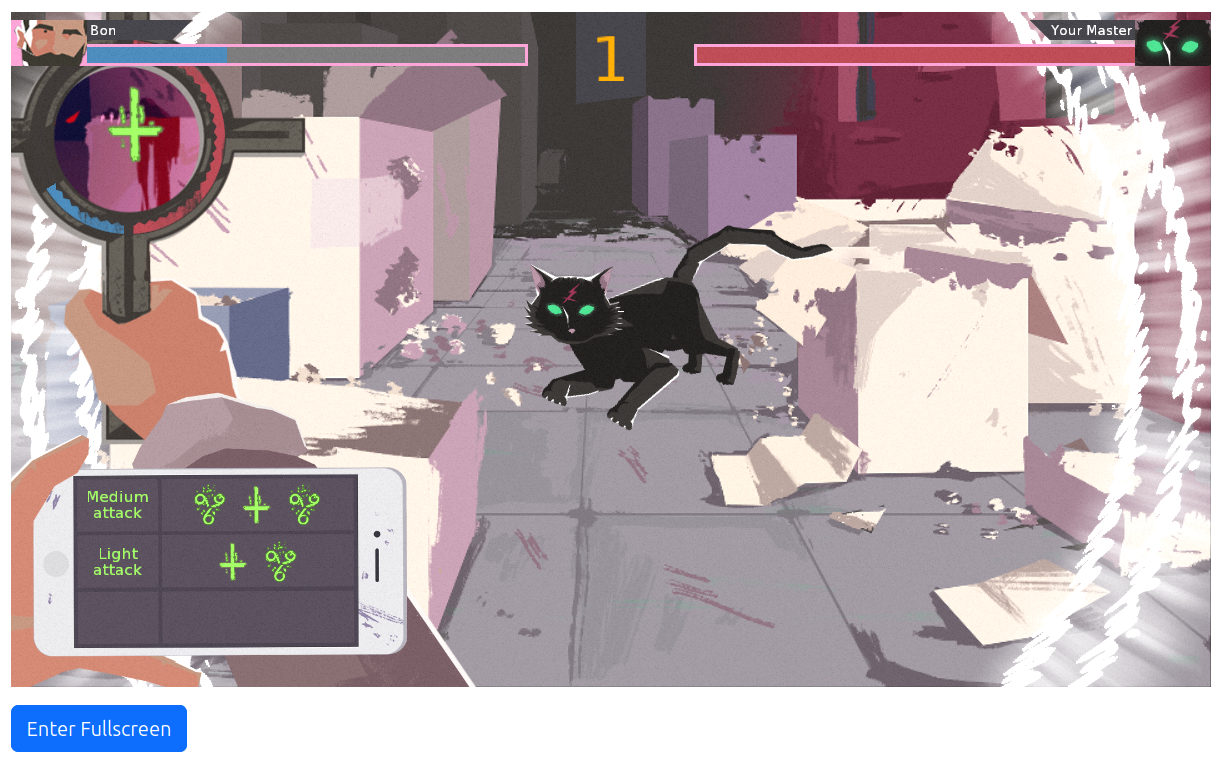
The fight minigame in our The Unholy Society. Dragging the cross freely once you press the mouse button — that relies on pointer lock.
Special considerations on the web
The web platform has important peculiarities around pointer lock.
- You can only request pointer lock in the transient activation state, which means it must be triggered by a user interaction (like a mouse click or key press) or right after it.
-
The user can always cancel the pointer lock, you cannot prevent it, and you should not try to immediately “reenter it”. You should instead respect the user’s wish and listen using the
TCastleAbstractPointerLock.AddUserCancelledListenerAPI. -
We have documented this in the section “Pointer lock (mouse look) and handling Escape key in FPS games” for the web platform. See there for example code snippets. Also, all our examples (see below for a full list) should serve as demos how to handle it correctly.
We tested our implementation on Firefox, Vivaldi (Chromium-based) and Google Chrome. It really should work in all browsers, and we adjust to some of the browser-specific “quirks”.
All the demos
We have many more demos! Here’s a complete list — every one of them has a web build you can try right now, and a link to its source code:
- creature_behaviors (source)
-
The physics demos — physics_3d_shooter (source), physics_3d_demo (source), physics_explosion (source) and physics_throw_chickens (source). In all of these, the right click toggles mouse look, so there’s no need to hold it. All except
physics_3d_shooterare on the web for the first time. -
dragging_test (source) — first time on web, and updated specifically to showcase this.
-
optimize_animations_test (source) — first time on web.
-
multiple_windows_and_viewports (source) — on a desktop, this shows 2 windows, with 2 viewports each, for a total of 4 viewports observing simultaneously the same world. On web, we show only 1 window (since 1 canvas) with 2 viewports.
Refactors
Internally, we have rearranged how “mouse look” works on all the platforms.
First of all, we have introduced a class TCastleAbstractPointerLock (and internal descendants) that you can access by TCastleContainer.PointerLock.
This makes the engine code easier to adjust. A particular descendant can implement pointer lock in a way best for a particular platform. Right now, we have 3 implementations:
- For the web (
TCastleWebPointerLock), using the web pointer lock API. The web browser does the job of hiding and repositioning the mouse for us, in this case. We are prepared for the user cancelling it at any time. -
Cross-platform for desktops (
TCastleDesktopPointerLock). It assumes that settingWindow.MousePositionand changing cursor shape (potentially to invisible) works on a given platform. -
Specialized implementation for Windows (
TCastleWindowsPointerLock).
Note that all these classes (TCastleWebPointerLock, TCastleDesktopPointerLock, TCastleWindowsPointerLock) are internal. You don’t use them directly. You only use the abstract TCastleAbstractPointerLock API.
Note that mobile platforms typically do such navigation in a different way. See the “Navigating in 3D on touch devices using TCastleWalkNavigation” section in touch input for an overview of how to make comfortable navigation on mobile. This is not the topic of this news post — we only mention it here for completeness, if anyone wonders “what about phones?”.
We did a lot of changes to how pointer lock works internally, on all the platforms (including desktops):
- We no longer need to take any
ControlRectwithin which we were repositioning the mouse. We make sure the component controlling the mouse look receives the necessary events, regardless of where it is. -
We expose new
TInputMotion.Delta, simpler to use than oldContainer.MouseLookDelta. -
On desktops, hiding the mouse during “mouse look” is now done without touching any public fields like
Container.OverrideCursororTCastleWalkNavigation.Cursor.
While working on this, we also had to improve our input capturing code, which deals with:
ForceCaptureInput- Something that controls pointer lock, like
TCastleWalkNavigation. - Captured controls, which receive events because you started dragging on them.
Things are more consistent and reliable in various ways. For example, changing Exists of components is now more consistent: a navigation with Exists = false naturally resigns from controlling the pointer lock.
Windows improvements
Finally, we have used this opportunity to do some Windows-specific improvements. With the new code organization, it’s easy to extend the mechanism to improve the behavior on a specific platform.
On Windows we now keep the cursor more reliably within the window during pointer lock, by WinAPI SetCapture + ReleaseCapture and ClipCursor calls. Our approach is a bit similar to what the Godot Engine is doing, so we’re following a proven solution.
In effect, the mouse will not “escape” from the window when pointer lock is active, even if you’re in a windowed mode, with low FPS, and/or move the mouse with wild speed.
I hope you enjoy all these details 🙂 Please support our work on Patreon and have a ton of fun making games during these summer holidays!