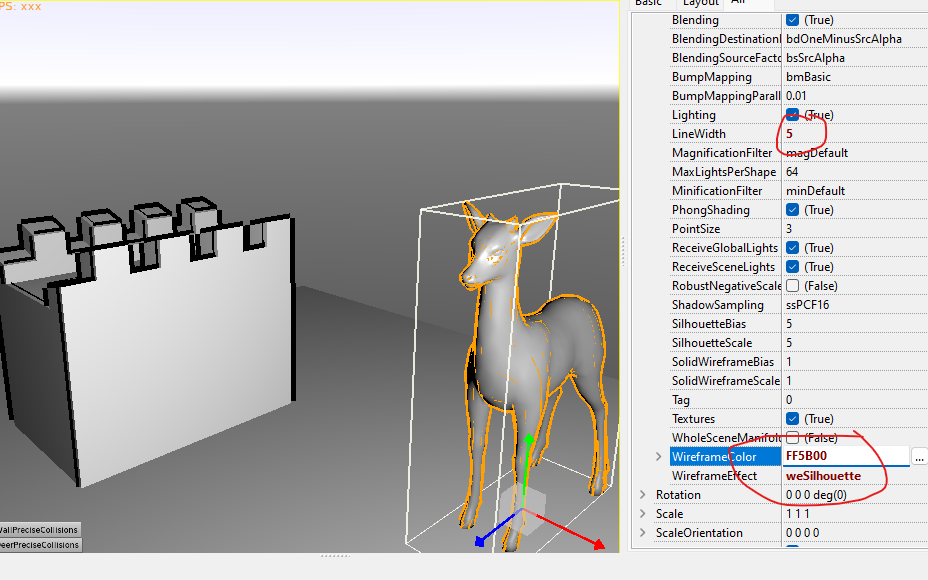
How do I highlight a 3D object as shown in the image?
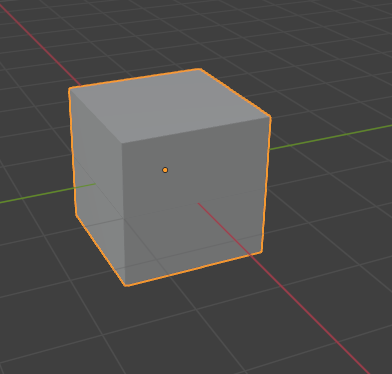
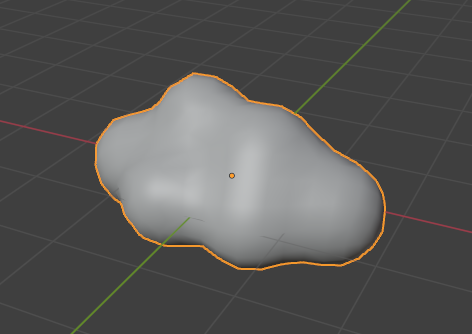
did you try WireFrameEffect with weSilhouette mode ?
No.
It’s hard for me to explain it in words, but it’s clear in the images above what I mean.
Imagine a three-dimensional object drawn in two dimensions, and its outer boundary (in the 2D representation) is defined.
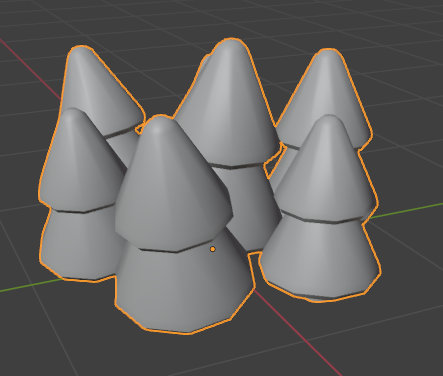
3D Object is :
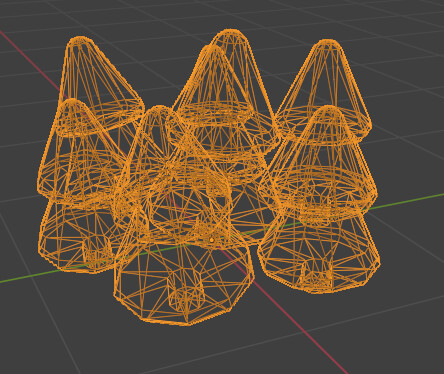
@phomm Thanks.
It’s very close to what I’m looking for.
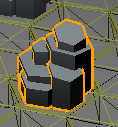
A lot of extra lines are being displayed, but I think it’s good enough for my purposes.
See also our tutorial “bad chess” where we discuss / show this way of highlighting 3D objects, Tutorial: 3D physics fun (aka "the bad way to play chess") | Castle Game Engine 
2 Likes
There are also SilhouetteBias and SilhouetteScale parameters to adjust the inner lines, but they don’t seem consistent in this sense on different zooms. Not sure if it helps, but you could try if some values like x10 or x100 from default 5 would make difference. I didn’t find any good explanation Castle Game Engine: CastleRenderOptions: Class TCastleRenderOptions
You could also try and see how it work on an example project in my topic [ISSUE] 3D complex models hittest
Fixed
I added documentation for them in this commit. See API docs of TCastleRenderOptions.SilhouetteScale.
Admittedly, while I hope these docs will help, I’m afraid there’s no clear guideline what these values should be – finding them out experimentally (and not depending that they will work exactly the same on all systems) is unfortunately the only way. This comes from how the OpenGL glPolygonOffset works, the SilhouetteScale / SilhouetteBias are just passed to it. So our documentation explains how does it work in our engine, but ultimately… what glPolygonOffset does is not precisely specified and may (and does!) vary between GPUs.
1 Like